Scheduled service desk reports: from configuration to the weekly review
What’s a Rich Text element?
The rich text element allows you to create and format headings, paragraphs, blockquotes, images, and video all in one place instead of having to add and format them individually. Just double-click and easily create content.
Static and dynamic content editing
A rich text element can be used with static or dynamic content. For static content, just drop it into any page and begin editing. For dynamic content, add a rich text field to any collection and then connect a rich text element to that field in the settings panel. Voila!
How to customize formatting for each rich text
Headings, paragraphs, blockquotes, figures, images, and figure captions can all be styled after a class is added to the rich text element using the "When inside of" nested selector system.
1 element
2 element
3 element
1 element
2element
3 element
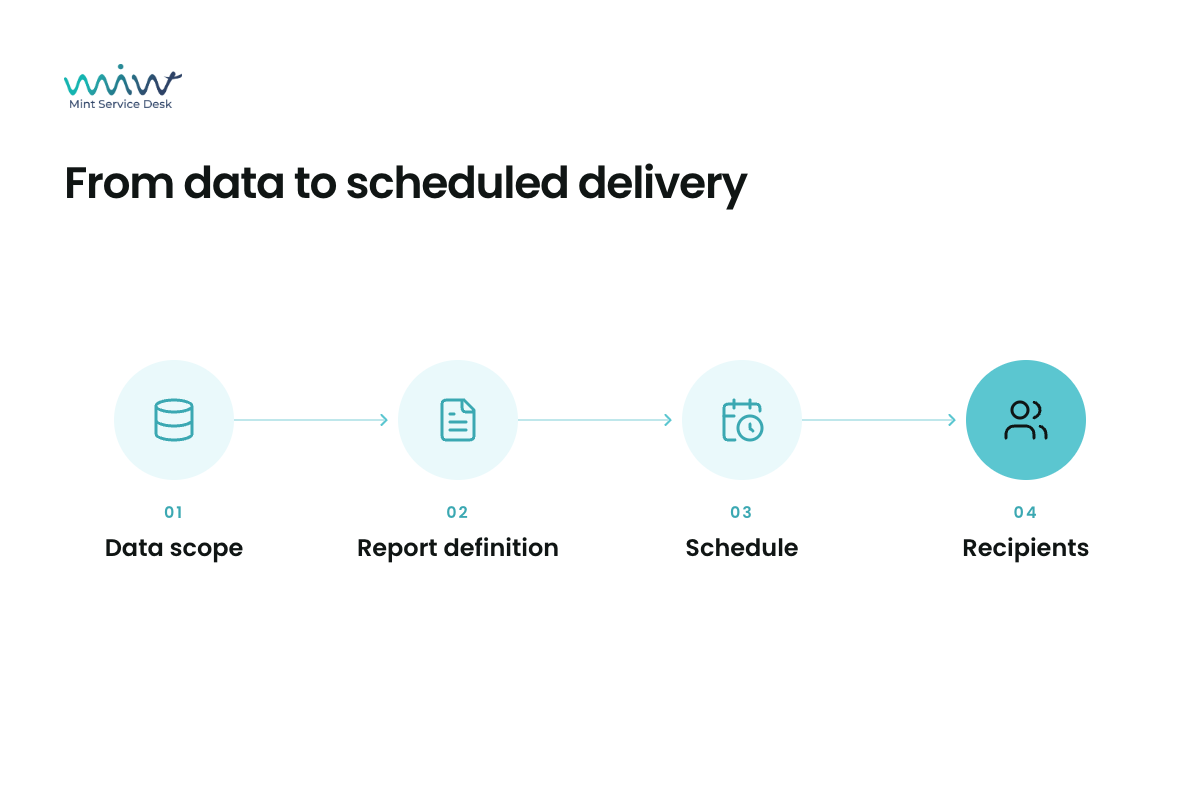
A report for a weekly team meeting is a recurring requirement. Applying the same filters, generating a file and emailing the same recipients does not have to remain a recurring manual task. Mint Service Desk lets you save a report definition and schedule its generation and delivery. Start with one report that has a clear audience and supports a specific decision.
Start with the meeting the report will support
Before configuring the report, establish what its reader needs to do with the information. A service desk manager may need a list of cases to discuss with the team. An account owner may need information about support for a particular customer. These are different needs, even when both reports use ticket data.
Consider an illustrative scenario: every Monday, a support team reviews open cases in a selected queue. The report should identify tickets that need an agreed next step. That purpose helps determine the fields to include and who should receive the output.
Define a scope readers can interpret consistently
Document what an open case means in your workflow. Does it include tickets waiting for a customer response or a supplier? If meeting participants interpret these terms differently, the same report can lead them to different conclusions.
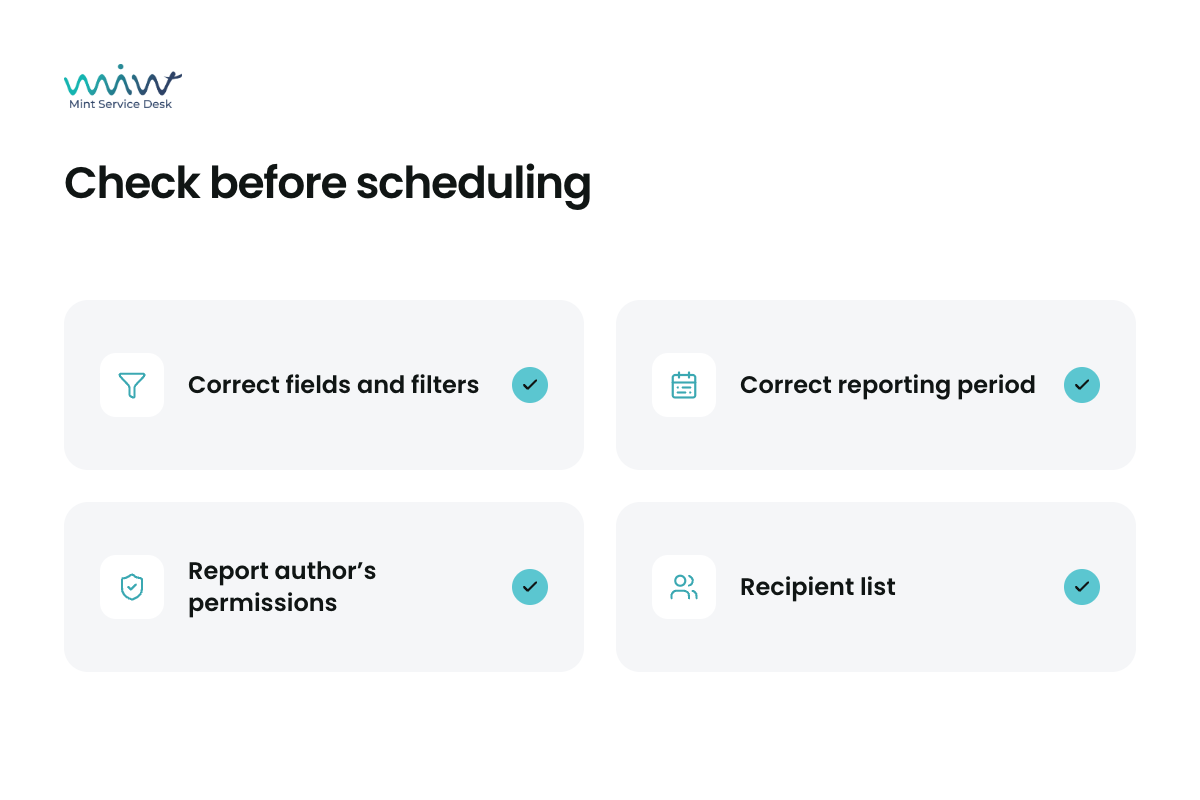
Choose columns that support the discussion. A ticket number, subject, status and assigned agent may be useful for the illustrative review. Treat this as a starting point to validate against your own data, rather than a universal template.
Also distinguish between cases open when the report runs and cases created during the previous week. A report restricted to newly created tickets may leave out an older unresolved case.
Check data completeness, consistency and timeliness. For the illustrative report, this means checking that the output includes all the cases needed and represents the intended point in time or reporting period.
Prepare the report definition in Mint Service Desk
The Reports module lets you select the data type, fields, filters and export format. A recurring ticket review starts with a Tickets report. The saved definition determines what subsequent generated reports contain.
Generate the report manually before scheduling it. Check a case that should be included and another that should be excluded. This tests the filters rather than relying solely on a matching row count.
If you use a date filter, check how it behaves on the next run. Scheduling generation does not replace a correctly defined reporting period.
Set the schedule and delivery details
In Report Schedule, select the saved report definition, CSV or XLSX format, generation frequency and recipients. You can also set the subject and body of the delivery email.
Choose the format with the file’s intended use in mind. When working with it in Excel, remember that saving to CSV does not preserve worksheet formatting.
Arrange for the report to be prepared before the meeting, allowing time to check the result. Give the report and email a clear purpose, such as Open case review — support team.
Explain how the attachment should be used. A report contains data from the time it was generated. Check a ticket’s current status in the system when discussing it, especially if several hours have passed since delivery.
Review recipients and permissions
Report creation and schedule management depend on the permissions assigned to the agent’s role. Check module availability in your Mint Service Desk version and configuration.
The documentation also states that shared reports are generated using their author’s permissions. Do not assume that the output will automatically be limited to the access rights of the person with whom the report is shared.
Before the first delivery, review both the file’s contents and the recipients. Being able to open a report does not establish that every item of information in it is appropriate for that reader.
Verify the first run and assign an owner
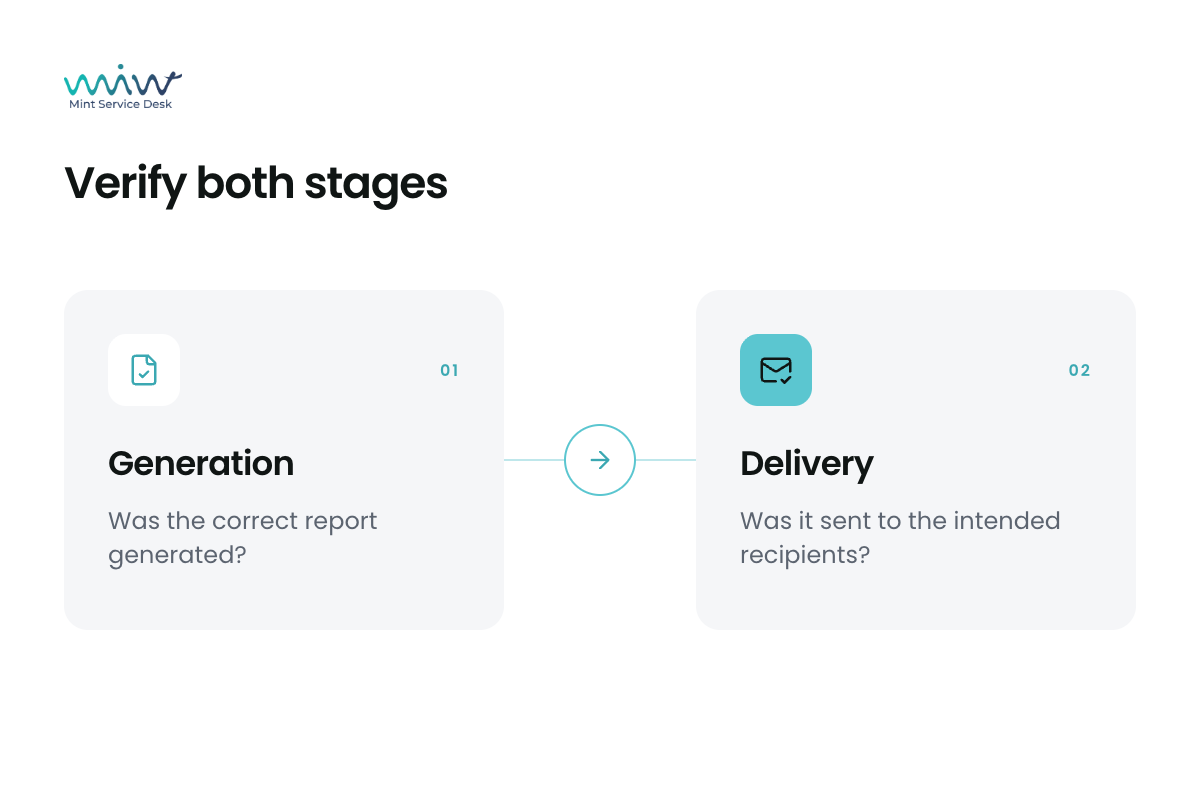
Generation history shows whether report preparation succeeded, while schedule details provide delivery information. Check both stages: the generated file and its delivery.
After the first cycle, confirm that the recipient received the correct report, could read it and found the information needed for the meeting. If they still need another extract, revisit the scope before adding another schedule.
Assign someone to maintain the configuration. Changes to a queue, workflow or team may require a review of filters and recipients. Scheduled delivery reduces repeated tasks; responsibility for the report’s contents still needs an owner.
Choose the first report to schedule
Select a report your team already prepares manually on a regular basis. Agree on its purpose, validate the definition against real data and test the first cycle. Extend scheduling to other reports after that check.
The Mint Service Desk documentation describes configuration in the Reports section. Start with a report that will support your next team review.